I recently had a requirement to enable users to send an email from a specific PeopleSoft page. To be consistent with other elements of our interface, I wanted to popup a dialog with a form where the user could enter the message details. The input would then be processed on the server in PeopleCode to send the message.
Here is the dialog.

 As in other areas of our public interface, most of the heavy lifting will be done by jQuery and jQuery UI. See my earlier posts for basics. By-the-way, we are still on PeopleTools 8.49. There may be a better way to do this in the world of 8.50 and beyond.
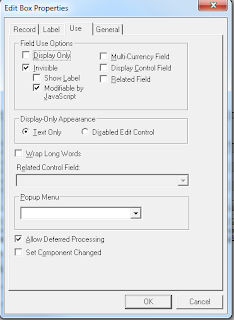
I used my standard technique of putting the JavaScript and related markup in an HTML definition. On Page.activate, the markup is injected into an HTML area on the page. I also added to the page a field for each of the user input fields that are to be displayed in the dialog. These fields are all set to Invisible - Modifiable by JavaScript. This setting allows me to create hidden fields on the page that will will be picked up by the component processor. I also gave the fields friendly names in the Page Field Name field under the General tab.
I first added the jQuery libraries, css and hidden fields to my HTML markup. The hidden field names and ids match those I entered in Page Field Name.
<script src="/rhijs/jquery.min.js" type="text/javascript"></script>
<script src="/rhijs/jquery-ui.min.js" type="text/javascript"></script>
<script src="/rhijs/date.js" type="text/javascript"></script>
<link type="text/css" href="/rhijs/jquery-ui-1.8.5.custom.css" rel="stylesheet" />
<link type="text/css" href="/rhijs/demos.css" rel="stylesheet" />
<!-- following fields added for Client Timesheet Email -->
<input type='hidden' name='EMAIL_TO' id='EMAIL_TO'/>
<input type='hidden' name='EMAIL_CC' id='EMAIL_CC'/>
<input type='hidden' name='EMAIL_BCC' id='EMAIL_BCC'/>
<input type='hidden' name='EMAIL_SUBJECT' id='EMAIL_SUBJECT'/>
<input type='hidden' name='MESSAGE' id='MESSAGE'/>
Then the HTML for the dialog form. I'm using a combination of custom and PeopleSoft class names to style the form. The main <div> has the attribute style="display:none" to prevent the html from being shown on the page .
<!-- Send Client Email Dialog html -->
<div id="sendEmailDialog" title="Email Timesheet" style="display:none">
<style type="text/css">
.emailLabel {
display: block;
width: 90px;
float: left;
margin: 5px;
}
.emailInput {margin: 5px; }
.emailInputDisabled {margin: 5px; border: none; background-color:white; }
.dialogFormset {border: none;}
</style>
<p class="RH_PAGE_HDR">Send Timesheet by Email</p>
<p class="PSEDITBOX_DISPONLY">Type email addresses into the To, CC and BCC fields using a semicolon (;) as the separator.</p>
<fieldset class="dialogFormset">
<label for="emailFrom" class="PSEDITBOXLABEL emailLabel">From:</label>
<input type="text" id="emailFrom" class="emailInputDisabled" size="50" maxlength="254" value="%BIND(:17)" class="PSEDITBOX_DISPONLY" disabled="disabled"/><br/>
<label for="emailTo" class="PSEDITBOXLABEL emailLabel">To:</label>
<input type="text" id="emailTo" name="emailTo" class="emailInput" size="50" maxlength="254"/><br/>
<label for="emailCC" class="PSEDITBOXLABEL emailLabel">CC:</label>
<input id="emailCC" class="emailInput" size="50" maxlength="254"/><br/>
<label for="emailBCC" class="PSEDITBOXLABEL emailLabel">BCC:</label>
<input id="emailBCC" class="emailInput" size="50" maxlength="254"/><br/>
<label for="emailSubject" class="PSEDITBOXLABEL emailLabel">Subject:</label>
<input id="emailSubject" class="emailInput" size="50" maxlength="80"/><br/>
<label for="attachment" class="PSEDITBOXLABEL emailLabel">Attachment:</label>
<input id="attachment" class="emailInputDisabled" id="emailFrom" size="50" value="%BIND(:18)" class="PSEDITBOX_DISPONLY" disabled="disabled"/><br/>
<label for="emailMessage" class="PSEDITBOXLABEL emailLabel">Message:</label>
<textarea id="emailMessage" class="emailInput" rows="6" cols="60"></textarea>
</fieldset>
</div>
When the user clicks on the email link, JavaScript pops up a jQuery UI dialog. Here's the code that does that:
// Send Client Timesheet Email
function sendClientEmail() {
isDialogOpen = true;
sendClientEmailDialog.dialog('open');
}
// Send Client Email Dialog definition
var sendClientEmailDialog = $("#sendEmailDialog").dialog({
autoOpen: false,
width: 600,
modal: true,
buttons: { "Send Email": sendEmail,
Cancel: function() {
$( this ).dialog( "close" );
isDialogOpen = false;
}
}
});
// Send button function for sendClientEmailDialog dialog
var sendEmail = function() {
var mail = $('#emailTo').val();
if (mail == "") {
alert("To: address is required");
return false;
}
$('#EMAIL_TO').val(mail); //hidden field
$('#EMAIL_CC').val($('#emailCC').val()); //hidden field
$('#EMAIL_BCC').val($('#emailBCC').val()); //hidden field
$('#EMAIL_SUBJECT').val($('#emailSubject').val()); //hidden field
$('#MESSAGE').val($('#emailMessage').val().replace(/\n/g,"<br/>")); //Replace cr with break
$('#RH_TC_DERIVED_CONFIRMED').val('Y'); //hidden field
$(this).dialog('close');
isDialogOpen = false;
return submitProxied.apply(window, localArgs); // continue submit process
};
In the sendClientEmailDialog definition, $("#sendEmailDialog").dialog uses the html we defined above as the body of the dialog. The sendEmail function is called by the Send Email button. The function copies the form values into the hidden fields and continues with the normal PeopleSoft button processing. On the server, the component processor adds the hidden fields to the buffer where PeopleCode validates the input and sends the email.
Here is the dialog.


I used my standard technique of putting the JavaScript and related markup in an HTML definition. On Page.activate, the markup is injected into an HTML area on the page. I also added to the page a field for each of the user input fields that are to be displayed in the dialog. These fields are all set to Invisible - Modifiable by JavaScript. This setting allows me to create hidden fields on the page that will will be picked up by the component processor. I also gave the fields friendly names in the Page Field Name field under the General tab.
I first added the jQuery libraries, css and hidden fields to my HTML markup. The hidden field names and ids match those I entered in Page Field Name.
<script src="/rhijs/jquery.min.js" type="text/javascript"></script>
<script src="/rhijs/jquery-ui.min.js" type="text/javascript"></script>
<script src="/rhijs/date.js" type="text/javascript"></script>
<link type="text/css" href="/rhijs/jquery-ui-1.8.5.custom.css" rel="stylesheet" />
<link type="text/css" href="/rhijs/demos.css" rel="stylesheet" />
<!-- following fields added for Client Timesheet Email -->
<input type='hidden' name='EMAIL_TO' id='EMAIL_TO'/>
<input type='hidden' name='EMAIL_CC' id='EMAIL_CC'/>
<input type='hidden' name='EMAIL_BCC' id='EMAIL_BCC'/>
<input type='hidden' name='EMAIL_SUBJECT' id='EMAIL_SUBJECT'/>
<input type='hidden' name='MESSAGE' id='MESSAGE'/>
Then the HTML for the dialog form. I'm using a combination of custom and PeopleSoft class names to style the form. The main <div> has the attribute style="display:none" to prevent the html from being shown on the page .
<!-- Send Client Email Dialog html -->
<div id="sendEmailDialog" title="Email Timesheet" style="display:none">
<style type="text/css">
.emailLabel {
display: block;
width: 90px;
float: left;
margin: 5px;
}
.emailInput {margin: 5px; }
.emailInputDisabled {margin: 5px; border: none; background-color:white; }
.dialogFormset {border: none;}
</style>
<p class="RH_PAGE_HDR">Send Timesheet by Email</p>
<p class="PSEDITBOX_DISPONLY">Type email addresses into the To, CC and BCC fields using a semicolon (;) as the separator.</p>
<fieldset class="dialogFormset">
<label for="emailFrom" class="PSEDITBOXLABEL emailLabel">From:</label>
<input type="text" id="emailFrom" class="emailInputDisabled" size="50" maxlength="254" value="%BIND(:17)" class="PSEDITBOX_DISPONLY" disabled="disabled"/><br/>
<label for="emailTo" class="PSEDITBOXLABEL emailLabel">To:</label>
<input type="text" id="emailTo" name="emailTo" class="emailInput" size="50" maxlength="254"/><br/>
<label for="emailCC" class="PSEDITBOXLABEL emailLabel">CC:</label>
<input id="emailCC" class="emailInput" size="50" maxlength="254"/><br/>
<label for="emailBCC" class="PSEDITBOXLABEL emailLabel">BCC:</label>
<input id="emailBCC" class="emailInput" size="50" maxlength="254"/><br/>
<label for="emailSubject" class="PSEDITBOXLABEL emailLabel">Subject:</label>
<input id="emailSubject" class="emailInput" size="50" maxlength="80"/><br/>
<label for="attachment" class="PSEDITBOXLABEL emailLabel">Attachment:</label>
<input id="attachment" class="emailInputDisabled" id="emailFrom" size="50" value="%BIND(:18)" class="PSEDITBOX_DISPONLY" disabled="disabled"/><br/>
<label for="emailMessage" class="PSEDITBOXLABEL emailLabel">Message:</label>
<textarea id="emailMessage" class="emailInput" rows="6" cols="60"></textarea>
</fieldset>
</div>
When the user clicks on the email link, JavaScript pops up a jQuery UI dialog. Here's the code that does that:
// Send Client Timesheet Email
function sendClientEmail() {
isDialogOpen = true;
sendClientEmailDialog.dialog('open');
}
// Send Client Email Dialog definition
var sendClientEmailDialog = $("#sendEmailDialog").dialog({
autoOpen: false,
width: 600,
modal: true,
buttons: { "Send Email": sendEmail,
Cancel: function() {
$( this ).dialog( "close" );
isDialogOpen = false;
}
}
});
// Send button function for sendClientEmailDialog dialog
var sendEmail = function() {
var mail = $('#emailTo').val();
if (mail == "") {
alert("To: address is required");
return false;
}
$('#EMAIL_TO').val(mail); //hidden field
$('#EMAIL_CC').val($('#emailCC').val()); //hidden field
$('#EMAIL_BCC').val($('#emailBCC').val()); //hidden field
$('#EMAIL_SUBJECT').val($('#emailSubject').val()); //hidden field
$('#MESSAGE').val($('#emailMessage').val().replace(/\n/g,"<br/>")); //Replace cr with break
$('#RH_TC_DERIVED_CONFIRMED').val('Y'); //hidden field
$(this).dialog('close');
isDialogOpen = false;
return submitProxied.apply(window, localArgs); // continue submit process
};
In the sendClientEmailDialog definition, $("#sendEmailDialog").dialog uses the html we defined above as the body of the dialog. The sendEmail function is called by the Send Email button. The function copies the form values into the hidden fields and continues with the normal PeopleSoft button processing. On the server, the component processor adds the hidden fields to the buffer where PeopleCode validates the input and sends the email.


